January 28, 2011

Create new links tab

Basically create a new link tab is not difficult, if we know where to put the HTML code
In this post I will share some experience / lesson on how to create new links tab on blogger for posting open new windows or new windows so that people who read the article we do not link or switch to another blog .. time to read our blog article ... !

alright just yach ...

# step 1
after you make a post entry and enter the link ... .. that the intonation of the word replacement link as an example .. the word click here and his link http://aryusaga88.blogspot.com
you can use another link because the link that I use only as an example .... ok ...!!
see picture


then you go into Edit HTML on the Compose menu ...
see picture


will appear as the following HTML code  url address that I use only as an example .. you can use the link whatever you want ....
after the input code Target = "new" as in the picture below

see picture


after that you return to the Compose menu and then SAVE post your article and publish it ..... then see the article on your blog that you edit the link already you try to click the link that you have created in accordance with these instructions .... When you click on the link will appear a new tab and your blogg is still open untu in reading his article ...

Vista Flip 3D F in Windows XP with TopDesk

One of the new feature in Windows Vista is Windows Flip 3D. Windows Flip 3D is the new windows navigation and management in Windows Vista that allows users to easily identify and jump or switch to another open window by displaying 3D snapshot thumbnail preview of all windows in stack that is scrollable with mouse’s wheel or arrow keys, on the support of Windows Aero Glass transparency effects. However, Windows Flip 3D idea is not new. Mac OS X Expose feature has allowed user dynamically tile all the open windows so that you can view the thumbnail and find the window you’re looking for more quickly. And there is alternative program or application that enable functionality similar to Windows Vista Flip 3D Windows XP.Otaku Software TopDesk
TopDesk is a Alt-Tab task switcher between applications replacement for Windows XP which allows you to instantly view thumbnails of all open windows, display thumbnails of windows belonging to the current application, or hide all windows to quickly access the desktop with a single key press. The latest version of TopDesk, TopDesk version 1.4.2 has incorporated Windows Vista Flip 3D feature which allows open windows to flip and tilt in a sliding sideway stack with transparent windows effect in 3D layout.
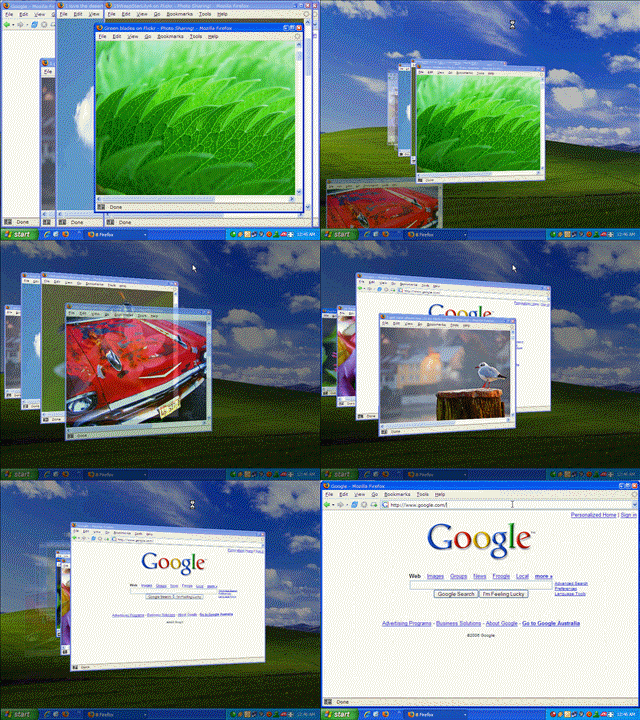
TopDesk Flip Windows

The features of Otaku Software TopDesk include:
  • Displays thumbnails of all applications, including minimized applications, in 2D and 3D views.
  • Shows thumbnails of all windows belonging to the current application.
  • Hides all windows for quick access the desktop.
  • While tiled, can display the title of the currently selected window or the titles of all tiled windows.
  • Windows can be closed and minimized/restored while tiled.
  • Completely configurable: Hot keys, mouse hotspots, floating buttons, window titles, and performance settings can all be changed.
  • Supports multiple monitors.
TopDesk Flip 3D

To activate TopDesk “Flip 3D” feature to preview all application windows, you can use Function Hot Keys, Mouse Hotspots, or Floating Buttons. By default, F9 tiles all windows, including minimized windows, F9+Shift tiles all visible windows, F10 tiles all windows belonging to the current application, and F11 hides all visible windows. Or you can simply move your mouse to a pre-defined TopDesk action mouse hot spots. Else, you can single click on floating buttons above all other applications to activate respective TopDesk action. As with Windows Flip 3D (test drive at Showusyourwow), you can then flip thru the windows with mouse scroll wheel. Best of all, minimized windows will be displayed as transparent window.
Download TopDesk (current version 1.4.2) from Otaku Software. It’s not a freeware, but evaluation trial version is available, and TopDesk costs a cheap $14.95 only.

How to Blog to Google Search Engine Part 2

Not at deny that the main purpose of a blog, among others, is for our writings can be read by others or blog visitors, the more who visit let alone to comment on what we post will certainly make our hearts feel good and happy. But of course not necessarily our blog will be busy in the visit, this requires a vigorous publicity efforts of the owner of the blog if you want a lot of visitors.
There are many ways that we can do our blogs to be known and visited, among others, is with our diligent blogwalking or visiting other people's blogs, lists the various aggregators, and the most effective way is through search engines or search engine.
For beginner bloggers may take the position that if we create a website or blog will be automatically indexed or are on lists various search engines, and in fact not the case. Just as a school, for our name list of students registered in the books, of course, we must make advance registration to the school. Similarly, search engines, for our blog indexed in search engines, then we must first register our own blog search engine on the site owner.
Search engines are huge numbers of course once, and at present the most famous in the world is Google, Yahoo, and Msn. If a blog we want them indexed in search engines, then our obligation is to register your blog URL in their search engine. If there are not know to what must register their blogs, so please refer to the following:

# List of Google
To sign up to google, please visit in here mate, well if already on the registration page there are several steps that must be done, namely to fill in a form that provided:


* URL -> Fill in the URL of your blog.
    
* Comments -> Fill in the keyword or keywords that relate to your blog
    
* Fill the empty boxes with letters Verification available
    
* Click the button Add URL
    
* Done.


After registering to my friend Google, it does not necessarily blog indexed in its search engine, but requires 3 to 4 weeks a new blog can be indexed. If you have 3 to 4 weeks, then try to type your blog on google search engine, is already indexed or not? if not, try waiting a few weeks away, and write the return address of your blog, If they are still not well, try again deh daftarin his blog to google like a step above. Or maybe my friend can not wait to quickly indexed, this could actually happen, only in 3 or 4 days only blog can already indexed in google. Want to know how? consider the next post, maybe one or two days to finish my next article created.

bloggers in the google search engine.

Hehehe .... of course my friend must have a Gmail.com account first ... follow the instructions listed here if already registered continue Blogger list here if my friend already have a blogspot account or already have a blog, though more preferably the content before posting an article .. .
Already have an account gmail.com then sob automatic entry into the dashboard google webmasters or following .Nah Here also is the first page. (To be more easily verified using the template provided by blogger.com).


Then go to wizard status of the site. Then add the site.


Then, send a map of the site.


As the picture below nih: to blogspot, add "atom.xml" and send

and finished


I'm already on my blog and managed to sob ...!!! http://aryusaga13.blogspot.com
and if my friend wanted to see how in google checked, type in site: (site name) we complete.
Faster than manual submit url. But this is only just registered, to get into the main page optimized website mate

Writing (post) article on Blogger

Although just copy and paste have the hopefully useful to a Friend bloggers,

Good ... no ... just beat around us! The following steps - steps:

 
1. Log in Blogger

 
Open ,blogger.com in here input your email and password in the column that has been provided, then press the "enter".
Writing Articles on Blog


2. Click New Entry
3. Start Writing Articles
Now that you've been in his post editor page bloggers. Where here is your place to post your blog articles. Please enter the title of the posts on the column headings, and content of your posts on the column below. If completed, you can categorize posts that you write to fill the column labels. For example, the title of the posting as an example of "How to Write Articles on the Blog" is to label filled with a "Bloggers Guide. " Thus, if the next time you write a post that had something to do with learning blog on blogger, you can categorize these postings into a label that you created earlier (in this case blogger guide).
Well, after you fill in all fields, you can directly publish your post on the blog by clicking "publish entry"


Well ... the steps - the steps above is a basic guide to write an article on the blog. In this way, you can begin to write articles and publish them on the blog.